About This Tool
Free PDF to Text Converter 2027 – Extract Readable Content into TXT and DOCX Files
PDFs are the standard format for sharing documents — contracts, research papers, invoices, reports, ebooks, and government forms all arrive as PDFs. They look polished, but they come with a familiar frustration: you cannot easily edit or reuse the words inside them.
Copy-pasting from a long PDF is slow and often breaks the layout. Converting manually wastes hours. And when the PDF is a scanned document, the text is not even selectable.
That is where a PDF to text converter helps. In 2026, you can pull readable content out of any PDF — digital or scanned — and save it as a clean TXT or Word file, straight from your browser.
👉 Convert Your PDF to Text Now
What Does a PDF to Text Converter Do?
A PDF to text converter pulls the readable characters out of a PDF and drops them into a plain, editable format.
With this tool, you can:
-
Extract text from digital PDFs that already contain selectable text
-
Run OCR on scanned pages where the text is locked inside an image
-
Preserve reading order so paragraphs come out in the right sequence
-
Handle multiple scripts — Hindi, English, French, Chinese, Japanese, Arabic, and more
-
Download as TXT for a lightweight, universal file
-
Download as DOCX to open and edit in Microsoft Word, Google Docs, or LibreOffice
-
Preview and edit the extracted text before saving it
The result is a clean text file you can search, quote, translate, or restyle — without retyping anything.
Why Choose This PDF to Text Converter in 2026?
Plenty of converters exist online. Here is what makes this one stand out.
1. Built for Real-World PDFs
Some PDFs contain selectable text. Others are scans, photos, or fax-quality images. This converter handles both. It reads embedded characters directly when they are available, and switches to OCR automatically when a page is an image.
You do not need to know in advance whether your PDF is digital or scanned — the tool detects it page by page.
2. Five OCR Modes for Different Sources
Not every scan is the same, so the tool offers five processing modes:
| Mode | Best For |
|---|---|
| Direct Text | Digital PDFs with selectable text |
| Standard OCR | Clean, straight scans with good contrast |
| Advanced AI-OCR | Faded or blurry prints |
| Advanced AI-OCR+ | Photos of pages with shadows and curvature |
| Photo OCR | Signs, posters, labels, and packaging |
Pick the mode that matches your source, and the engine applies the right image processing before reading.
3. Genuine Multi-Language Support
Text is not always in English. This converter supports a wide range of scripts through Unicode handling and language-specific OCR models:
-
Hindi (Devanagari)
-
English
-
French
-
Chinese (Simplified and Traditional)
-
Japanese
-
Spanish, German, Arabic, Russian, Korean
-
Bengali, Marathi, Tamil, Telugu, Urdu
Embedded fonts and character maps are loaded properly, so accented letters, matras, and logograms come out correctly instead of turning into garbled symbols.
4. Editable Preview Before You Save
The extracted text appears in a large editable box. You can fix a stray character, delete a broken line, or add a heading — all before downloading. Word and character counts update as you type.
5. TXT and DOCX Downloads
Two output formats cover almost every use case:
-
TXT — small, universal, opens in any text editor, ideal for coding, translation tools, and search
-
DOCX — opens in Word, Google Docs, or LibreOffice with proper fonts configured for Latin, East Asian, and Devanagari scripts
You can also copy the text to your clipboard with one click.
6. Batch Processing
Add several PDFs at once. The tool processes them in sequence and combines the results, with clear file separators so you always know which text came from which document.
7. Page Separators
Enable the page header option and the output includes clean markers such as --- Page 3 --- between pages. This is invaluable for citing sources, reviewing long reports, or comparing sections.
8. Completely Free, With No Limits
No subscription. No watermark. No daily cap. No signup. Convert as many documents as you need, as often as you like.
9. Works Across Devices
Chrome, Edge, Firefox, and Safari all work, on Windows, macOS, Linux, Android, and iOS. Nothing to install.
How to Convert a PDF to Text (Step-by-Step)
The whole process takes under a minute for most documents:
-
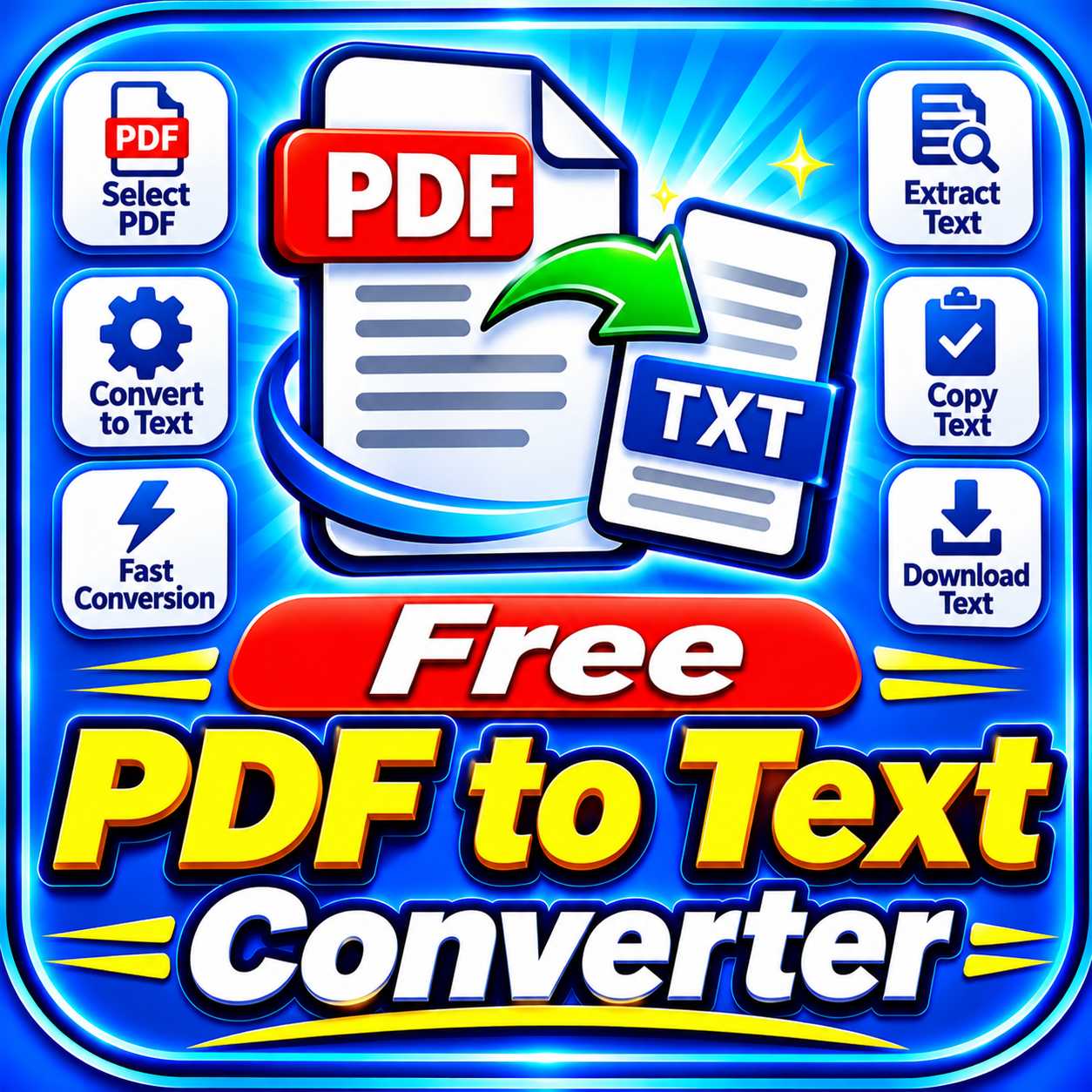
Open the converter → Go to the SmallPDF24 PDF to Text tool.
-
Add your PDFs → Drag and drop files, or click "Add more files." Multiple PDFs are supported.
-
Choose an OCR mode → Leave it on Direct Text for digital PDFs, or pick an OCR mode for scans.
-
Select the language → Multi-Language is the safest default for mixed documents.
-
Set your options → Name the output file, and decide whether to include page headers.
-
Click "Convert PDF to Text Now" → Progress shows page by page.
-
Review the preview → Edit any character errors in the text box.
-
Download → Save as TXT, DOCX, or copy to clipboard.
👉 Try the PDF to Text Converter
When Should You Convert a PDF to Text?
Extracting text from a PDF saves time in many situations:
-
Research — pull quotes from papers into a notes file
-
Legal work — search contracts for specific clauses
-
Translation — feed clean text into a translation service
-
Data entry — move invoice details into a spreadsheet
-
Accessibility — convert scanned documents into screen-reader-friendly text
-
Archiving — store plain text versions alongside heavy PDFs
-
Editing — send text to a colleague for review in Word
-
Content reuse — repurpose old reports into blog posts or presentations
-
Language learning — extract passages for study and annotation
-
SEO work — pull product descriptions from PDFs into a website
PDF to Text vs PDF Editor vs PDF Compressor — How They Differ
Each tool solves a different problem:
-
PDF to Text Converter → pulls the words out of a PDF into TXT or DOCX
-
PDF Editor → changes the content inside the PDF itself
-
PDF Compressor → reduces the file size of a PDF
They combine well in a document workflow:
-
Extract content with the PDF to Text Converter.
-
Make direct changes to the PDF with the PDF Editor.
-
Shrink the final file with the PDF Compressor.
Is It Safe to Convert Sensitive PDFs?
Yes. The converter runs inside your browser using JavaScript libraries, so your document is not sent to a remote service for processing.
-
No account is required
-
No copy of the file is stored elsewhere
-
Closing the tab clears everything
-
The original PDF on your device remains untouched
For contracts, ID documents, medical notes, and financial records, this approach keeps sensitive content under your control.
Frequently Asked Questions (FAQs)
Q1. Is this PDF to text converter free?
Yes. Every feature is available at no cost, with no signup, no watermark, and no daily limit.
Q2. Can it read scanned PDFs?
Yes. The tool detects pages without embedded text and runs OCR on them automatically. You can also choose a specific OCR mode for higher accuracy on difficult scans.
Q3. Which languages are supported?
Hindi, English, French, Chinese (Simplified and Traditional), Japanese, Spanish, German, Arabic, Russian, Korean, Bengali, Marathi, Tamil, Telugu, and Urdu are available. A multi-language option handles mixed documents.
Q4. What is the difference between TXT and DOCX output?
TXT is a plain text file — smallest size, opens anywhere, ideal for translation and code. DOCX is a Word document with proper font settings for Latin, East Asian, and Devanagari scripts, ideal for editing and formatting.
Q5. Will the layout of my PDF be preserved?
The converter focuses on the words, not the layout. Formatting such as columns, tables, and images is not carried over. If preserving layout matters, use the PDF Editor to modify the original file instead.
Q6. Can I convert several PDFs at once?
Yes. Add multiple files and the tool processes them in order. Each file's text is separated with a clear heading in the output.
Q7. What does the "Page X" separator option do?
It inserts a marker like --- Page 2 --- between pages in the output file. This helps when you need to cite a source page or navigate a long document.
Q8. Is there a size limit?
There is no fixed limit, but very large files depend on your device's available memory because processing happens locally.
Q9. Does it work on a phone?
Yes. The interface adapts to smaller screens, and the tool works in mobile Chrome and Safari.
Q10. Can I edit the extracted text before downloading?
Yes. The preview box is fully editable. Fix any character errors, delete unwanted lines, or add headings before saving.
Q11. What happens to my file after conversion?
Nothing is stored. The file is processed in the browser tab and cleared when you close the page. The original on your device is not modified.
Q12. Can I convert a password-protected PDF?
You will need to unlock the PDF first, because the converter cannot read encrypted content.
Start Converting Your PDFs to Text Today
Whether you are digitizing old reports, extracting quotes from research, or moving invoice details into a spreadsheet, the Free PDF to Text Converter 2026 turns locked PDF content into clean, editable files in moments.
👉 Convert PDF to TXT and DOCX Free
Extract with accuracy, keep control of your documents, and reuse your content without retyping a single word.