About This Tool
Free Online PDF Editor 2026 – Edit PDF Text, Images & Pages Instantly
PDFs are everywhere today — contracts, invoices, resumes, certificates, forms, reports, and scanned documents. They are convenient, but they come with one common problem: they are hard to edit.
Need to add your signature to a PDF? Add a name to a certificate? Fix a typo in a form? White-out a wrong date? Most people assume they need Adobe Acrobat or expensive software.
In 2026, you don't. You can edit PDF files directly inside your browser — in seconds, for free.
👉 Edit Your PDF Now — Free & Private
What Does a PDF Editor Do?
A PDF editor lets you make changes to an existing PDF file without converting it to Word or losing its layout.
With our tool, you can:
-
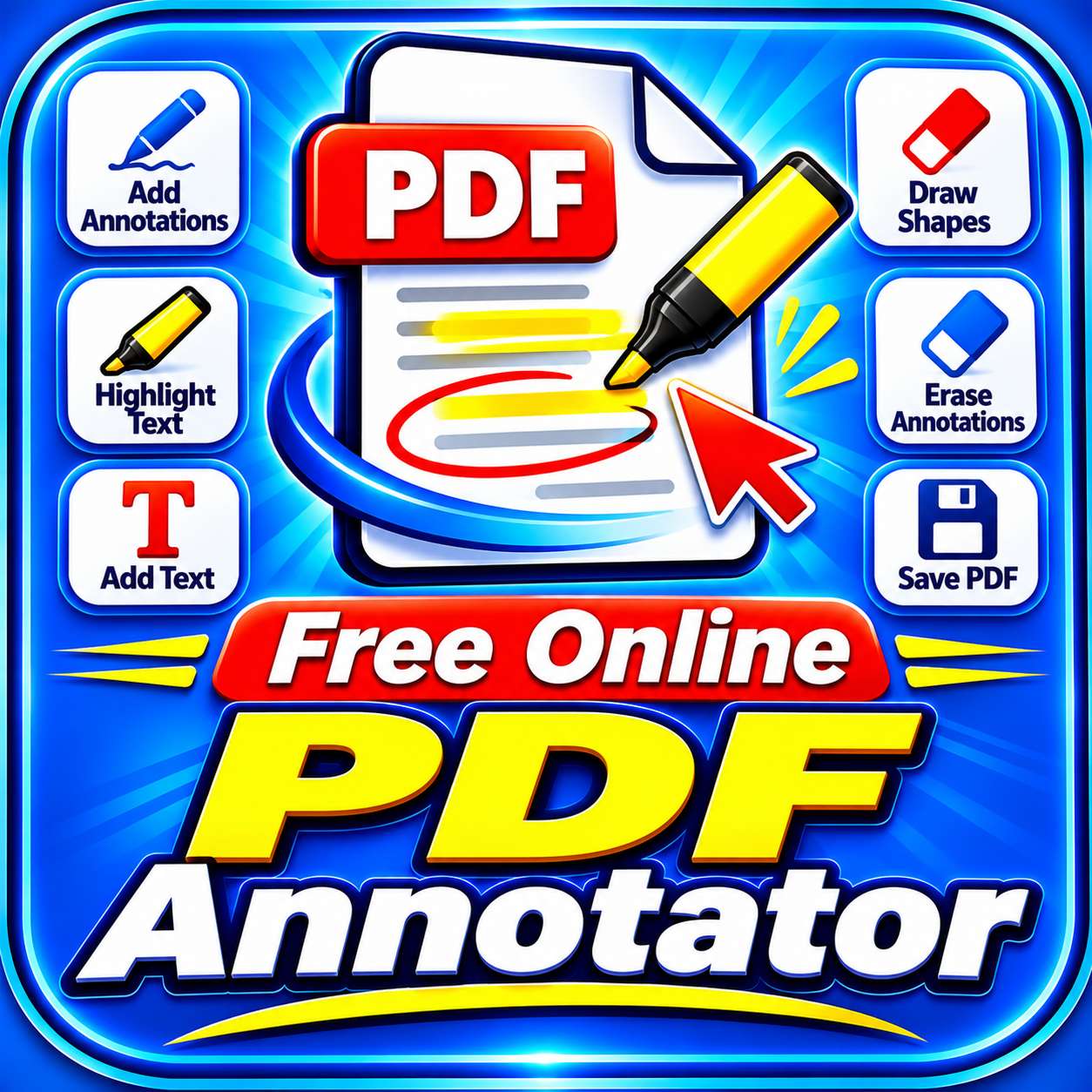
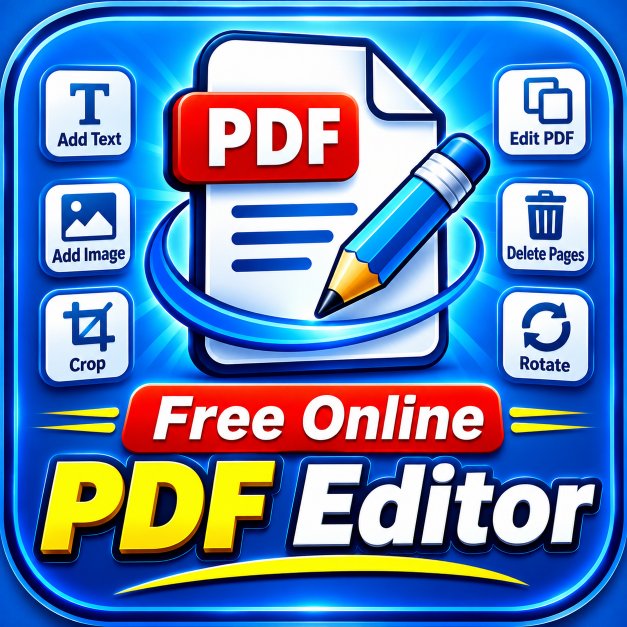
Add or replace text anywhere on a page
-
Insert images, logos, signatures, and stamps
-
White-out or erase unwanted content
-
Rotate pages by 90° when they are sideways or upside-down
-
Insert blank pages for printing or annotations
-
Apply edits to a single page or all pages at once
The result is a polished, edited PDF — same file, your changes applied, ready to download.
A good PDF editor should never force you to install software or upload your private documents to a server. Our tool does neither.
Why Choose Our PDF Editor in 2026?
There are many PDF tools online. Here is what makes this one different.
1. Your Files Are Never Uploaded
This is the biggest reason people choose this tool.
Most online PDF editors upload your file to a server, process it there, and then send it back. That means your private documents — ID cards, contracts, medical reports, business files — sit on someone else's machine.
Our editor works differently. It runs entirely inside your browser tab using PDF-Lib and PDF.js. Your files are never uploaded, never stored, and never seen by anyone. Not even by us.
If privacy matters to you, this is the safest way to edit a PDF online in 2026.
2. Click-to-Position Precision
You don't have to guess where your text or image will land. Simply click anywhere on the page preview, and the tool automatically captures the exact X, Y coordinates for that spot. Then add your edit — it appears exactly where you clicked.
A red crosshair marker shows your selected position in real time.
3. Add or Replace Text
Type any text you want, choose the font size (6–72 pt), pick a color, and place it anywhere. If you are fixing a typo in an existing form, use the White Box (Cover Old Text) option — it drops a white rectangle behind your new text, cleanly covering the old content.
You can also apply the text to all pages at once — perfect for adding page numbers, watermarks, or a footer to a multi-page document.
4. Insert Images, Logos, Signatures & Stamps
Upload a PNG or JPG image — your signature, a company logo, a stamp, or a watermark — then place it anywhere on the page. Set the width and height in points, click to position, and add. Transparency in PNG files is preserved, so your signature blends cleanly onto documents.
5. Whiteout / Erase Box
Need to hide sensitive information, remove an old date, or blank out a field? Drop a white rectangle of any size over the content. It works perfectly on forms, invoices, and certificates.
6. Rotate & Insert Pages
-
Rotate 90° — fix sideways scanned pages with one click
-
Insert blank pages — add a page after the current one for notes, printing, or signatures
7. Edit Single Page or All Pages
Some edits belong on every page (like a footer or watermark). Others belong on just one (like a signature on page 3). The "Apply To" option lets you choose:
-
Current Page Only — for targeted edits
-
All Pages — for watermarks, headers, footers
8. Completely Free, With No Limits
No subscriptions. No daily caps. No watermarks. No "edit 2 files then upgrade."
You can edit as many PDFs as you want, as often as you want, at zero cost.
9. Works Everywhere
Chrome, Edge, Firefox, Safari — on Windows, macOS, Linux, Android, and iOS. No plugins, no extensions, no software installation.
How to Edit a PDF Online (Step-by-Step)
Editing your PDF takes only a few seconds:
-
Open the tool → Go to the SmallPDF24 PDF Editor.
-
Upload your PDF → Drag and drop your file, or click "Choose PDF."
-
Navigate to the page → Use the ◀ Prev and Next ▶ buttons to find the page you want to edit.
-
Click the spot to edit → Click anywhere on the page preview to set the exact X, Y position (a red circle marks it).
-
Choose your edit type →
-
✏️ Add / Replace Text — type text, pick size, color, and background
-
🖼️ Add Image / Stamp — upload a PNG or JPG
-
⬜ Whiteout / Erase Box — set width and height
-
-
Click "+ Add Edit to Page" → Your edit appears in the "Applied Edits" list and on the page preview.
-
Save & Export → Click "Save & Export Edited PDF" and download your edited file.
No uploads. No sign-up. No waiting for a server.
When Should You Use a PDF Editor?
Editing a PDF is useful in more situations than most people realize:
-
Signing documents — add your signature image to contracts, agreements, and forms
-
Fixing typos — correct names, dates, or amounts on existing PDFs
-
Filling forms — add text to non-fillable form fields
-
Adding logos and stamps — brand invoices, letterheads, or certificates
-
Redacting sensitive info — whiteout account numbers, ID details, or personal info
-
Fixing scanned pages — rotate sideways pages to the correct orientation
-
Adding page numbers or watermarks — apply to all pages in one click
-
Preparing documents for print — insert blank pages for notes or signatures
PDF Editor vs PDF Compressor vs PDF Merger — What's the Difference?
People often mix up these tools. The difference is simple:
-
PDF Editor → changes the content of a PDF — text, images, pages, layout
-
PDF Compressor → makes a single PDF smaller without changing its content
-
PDF Merger → combines multiple PDFs into one file
All three are free on SmallPDF24, and none of them upload your files. They also work well together:
-
First, make your changes with the PDF Editor.
-
Then shrink the edited file with the PDF Compressor.
-
Combine multiple edited PDFs into one with the PDF Merger.
This three-step workflow is perfect for preparing professional documents — edit, compress, and merge, all in your browser.
Is It Safe to Edit Confidential PDFs Online?
With most tools, the answer is "maybe." With this tool, the answer is yes — because your files never leave your device.
There is no server, no storage, no logging, and no third party involved. The editing happens locally in your browser, which means:
-
No one can access your document
-
Nothing is saved anywhere after you close the tab
-
No data is collected from your files
For contracts, ID scans, medical records, and financial documents, this is the safest option available in 2026.
Frequently Asked Questions (FAQs)
Q1. Is this PDF editor really free?
Yes. It is 100% free with no subscription, no watermark, and no daily limits. You can edit as many PDFs as you need.
Q2. Are my PDF files uploaded to a server?
No. Your PDFs are processed entirely inside your browser using PDF-Lib and PDF.js. Nothing is uploaded anywhere, so your documents stay private on your own device.
Q3. Can I edit existing text in a PDF?
You can add new text anywhere on a page, and you can cover existing text with the Whiteout Box or the White Box (Cover Old Text) option, then place new text on top. Direct in-line editing of existing text (like in Word) is not supported, but the whiteout + replace approach works perfectly for most use cases.
Q4. Can I add my signature to a PDF?
Yes. Take a photo of your signature (or create one in any drawing app), save it as a PNG with a transparent background, then upload it as an image in the "Add Image / Stamp" tab. Place it anywhere on the page.
Q5. Can I add an image or logo to a PDF?
Yes. PNG and JPG images are fully supported. Transparency in PNG files is preserved, so logos and signatures blend cleanly onto the document.
Q6. Can I rotate pages in a PDF?
Yes. Click the "↻ Rotate 90°" button to rotate the current page. Each click adds 90°, so you can rotate 90°, 180°, 270°, or back to 0°.
Q7. Can I insert a blank page?
Yes. Click "+ Blank Page" to insert a blank page after the current page. It inherits the same size as the current page.
Q8. Can I apply an edit to all pages at once?
Yes. In the "Apply To" dropdown, choose "All Pages" instead of "Current Page Only." This is perfect for adding a watermark, footer, or page number to a multi-page document.
Q9. Is there a file size limit?
There is no fixed limit, but very large PDFs (50 MB+) depend on your device's available memory, since editing runs locally in your browser.
Q10. Can I edit a PDF on my phone?
Yes. The tool is fully responsive and works on Android and iOS in Chrome, Safari, and other modern browsers.
Q11. Does it work offline?
Yes — after the first load, the page works without an internet connection, because all editing happens locally.
Q12. Is it safe to edit confidential documents?
Yes — and it is safer than most alternatives, because your files never leave your device. No server, no storage, no privacy risk.
Start Editing Your PDFs Today
Oversized, uneditable PDFs slow you down. Whether you are signing a contract, fixing a typo, adding a logo, or preparing a document for print, the Free Online PDF Editor 2026 makes it instant, private, and completely free.
👉 Edit PDF Files Free — No Upload, No Signup
Edit with precision, protect your privacy, and share polished documents without limits.