About This Tool
Free PDF to Speech Converter 2026 – Listen to Hindi and English PDFs Out Loud
Reading long PDFs is tiring on the eyes and slow on a busy day. Study notes, competitive exam material, official reports, and scanned textbooks all demand hours of screen time. For people with vision difficulties, dyslexic readers, or anyone who learns better by listening, plain reading is a real barrier.
A PDF to speech converter changes that equation. It pulls the words off the page and speaks them aloud in a natural voice — and in 2026, you can do this in your browser, for Hindi, English, and many other languages.
👉 Convert Your PDF to Speech Now
What Does a PDF to Speech Converter Do?
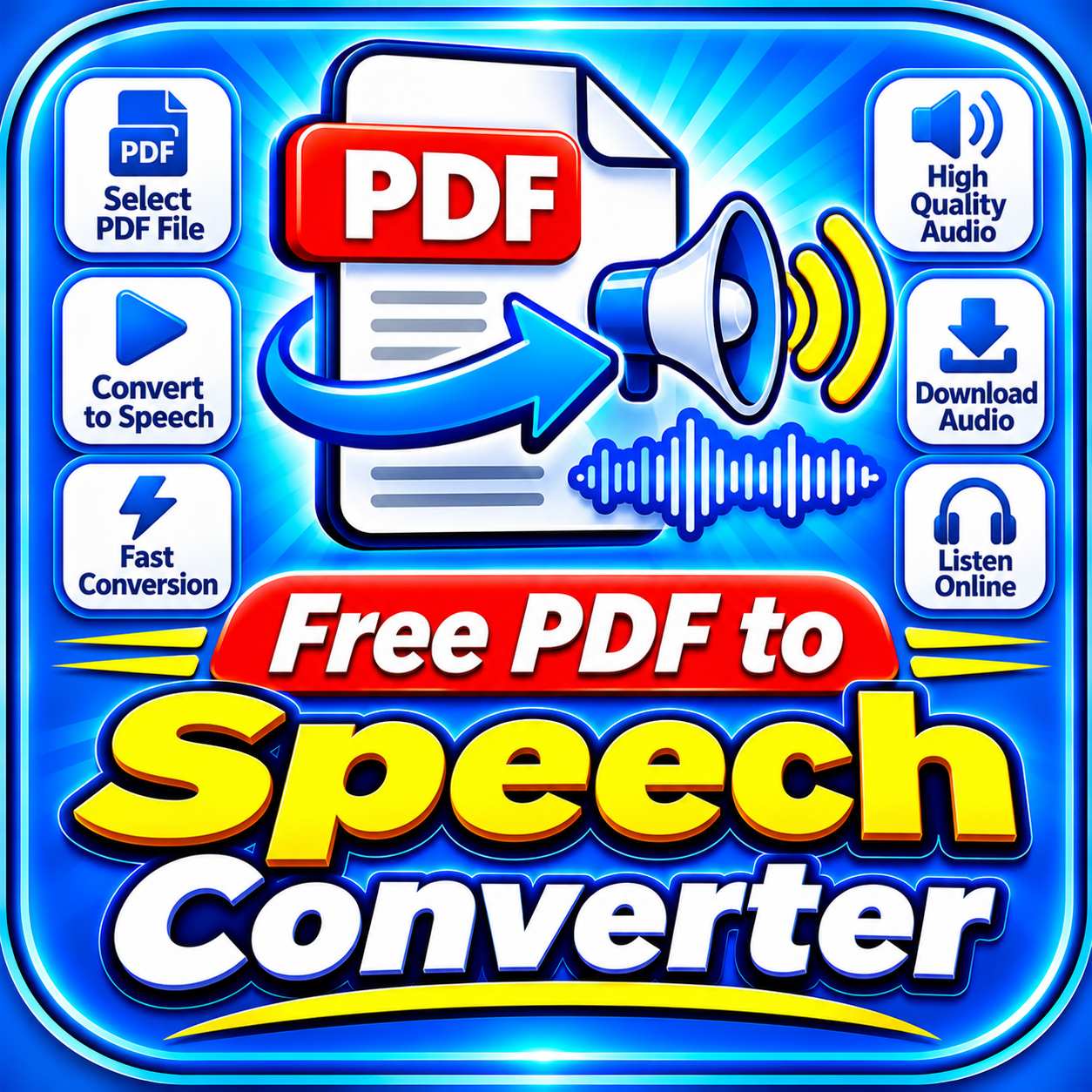
A PDF to speech tool extracts the text from a PDF document and passes it to a speech engine, which reads the words aloud.
With this converter you can:
-
Load a PDF, an image, or paste text directly
-
Run OCR on scanned pages so locked text becomes readable
-
Handle Hindi and English together in the same document
-
Fix legacy fonts such as KrutiDev and Chanakya that usually show as garbled symbols
-
Choose a target language for both the speech and an optional translation
-
Adjust speed and pitch to suit your listening preference
-
Play, pause, skip sentences, or stop using a simple player bar
-
Click any sentence in the interactive reader to hear only that portion
-
Copy the extracted text for use elsewhere
The output is spoken audio generated live in the browser, with no file to download unless you choose the MP3 route via a PHP server.
Why Choose This PDF to Speech Converter in 2026?
Plenty of text-to-speech tools exist, yet most stumble on Indian scripts, scanned documents, or legacy fonts. Here is where this one stands apart.
1. Built for Hindi and English Together
Many tools handle one language well and break on the other. This converter supports Hindi, English, and mixed Hindi-English documents, which is exactly the format used by YCT, GS, and most Indian exam prep material.
2. Handles Scanned and Image PDFs
When a PDF is just a picture of text, embedded extraction fails. This tool renders each page as a high-contrast image and runs OCR on it, so even scanned books and photographed pages can be read aloud.
3. Repairs Legacy Hindi Fonts
Books from publishers like Youth Competition Times and many government manuals use non-Unicode Walkman-Chanakya or KrutiDev fonts. Inside a PDF viewer those characters appear as strange Latin symbols such as ÙetLe keâe. The tool detects this pattern automatically, converts the page to an image, and reads it with a Hindi OCR model so the correct words come out.
4. Three PDF Reading Methods
Different documents need different handling:
| Method | Best For |
|---|---|
| Always OCR | Scanned books, KrutiDev, Chanakya PDFs |
| Smart Auto | Any PDF where the format is unknown |
| Fast Digital Text | Standard Unicode PDFs with a clean text layer |
5. Interactive Sentence Reader
The extracted text is split into clickable sentence chips. Click any chip to hear only that sentence, which is excellent for studying, quoting, or reviewing a section repeatedly.
6. Full Player Controls
A player bar at the top provides play, pause, resume, stop, previous sentence, and next sentence. Progress is shown both by sentence count and by a coloured bar.
7. Voice, Speed and Pitch Settings
Choose from the voices installed on your system, then tune speed from 0.5x to 2x and pitch from 0.5 to 1.5. Slower speeds help with dense material; higher pitch can improve clarity on small speakers.
8. Phonetic Fallback for Missing Hindi Voices
If your computer has no Hindi voice installed, English voices normally skip Devanagari silently. This converter detects that situation and transliterates the Hindi text into readable Roman letters, so speech still happens rather than failing without explanation.
9. Auto-Translation for Other Languages
Pick a target language such as Urdu, Bengali, Tamil, Marathi, Spanish, or French, and the translation button converts the loaded text before speaking. It uses a public translation service and falls back gracefully if the connection drops.
10. Batch Page Range Selection
Long PDFs take time to OCR. Enter a start and end page, and only that slice is processed — ideal for sampling a chapter before committing to the full document.
11. Included PHP Backend for MP3 Export
A second tab in the app provides a complete PHP script. Upload it to your server and the same conversion produces a downloadable MP3 file, useful if you want to listen offline or share audio with others.
12. Free and Open in the Browser
No signup, no subscription, no watermark. The core speech features run client-side, and there is no daily cap.
13. Works on Any Modern Device
Chrome, Edge, Firefox, and Safari all support the tool on Windows, macOS, Linux, Android, and iOS.
How to Convert a PDF to Speech (Step-by-Step)
The whole workflow takes a few clicks:
-
Open the converter → Go to the SmallPDF24 PDF to Speech tool.
-
Upload your file → Drag a PDF or image, or choose one from your device. You can also click "Load Demo Text" to test the reader first.
-
Choose OCR language → Hindi + English is the best default for Indian documents.
-
Pick the reading method → Use Always OCR for scanned or legacy-font PDFs, and Fast Digital Text for standard Unicode PDFs.
-
Set the page range → Enter start and end pages if you only need a portion.
-
Run extraction → The progress bar shows page-by-page status while OCR works.
-
Pick your speech language and voice → Select Hindi, English, or another language, then choose from the detected system voices.
-
Adjust speed and pitch → Use the sliders to fine-tune the listening experience.
-
Press "Play Speech" → Listen to the document, or click any sentence chip to hear a specific line.
-
Optional: translate → Choose a target language and press translate before playing.
👉 Try the PDF to Speech Converter
When Should You Listen to a PDF Instead of Reading It?
Speech conversion saves time in many everyday situations:
-
Competitive exam prep — revise polity, history, and GS notes while commuting or exercising
-
Accessibility — support for readers with low vision or dyslexia
-
Language practice — hear correct pronunciation of Hindi and English text
-
Proofreading — the ear often catches errors the eye misses
-
Multitasking — listen to a report while cooking, driving, or cleaning
-
Long documents — skim a research paper by listening to the first section
-
Study notes — hear your own summaries repeatedly for retention
-
Legacy textbooks — recover readable Hindi from KrutiDev or Chanakya PDFs
-
Scanned documents — turn photographed pages into spoken content
-
Language translation — hear the same passage in another language
PDF to Speech vs PDF to Text Converter — How They Differ
These two tools serve related but distinct purposes:
-
PDF to Speech → reads the text aloud, with optional MP3 export through the PHP backend
-
PDF to Text Converter → saves the extracted text as a TXT or DOCX file
They work well in sequence. Extract the text first with the PDF to Text Converter, then load that text into the speech tool when you want to listen.
Is It Safe to Use a Speech Converter on Sensitive Documents?
Yes. The main browser-based features — OCR, text extraction, and speech — all run locally on your device. Your PDF is not forwarded to an outside server for processing, and closing the tab clears the working data.
A few optional features reach the internet by design:
-
Auto-translation sends only the text you choose to translate
-
Cloud audio mode streams speech from a public service
-
The PHP backend must be hosted on your own server for MP3 export
If your document is strictly private, stick to the browser speech engine and skip the cloud and translation options.
Frequently Asked Questions (FAQs)
Q1. Is this PDF to speech converter free?
Yes. The core features — upload, OCR, speech, translation, and sentence controls — are available without payment, without a watermark, and without a daily limit.
Q2. Which languages are supported?
Speech and translation are supported in Hindi, English (India and US), Urdu, Bengali, Tamil, Telugu, Marathi, Gujarati, Punjabi, Spanish, French, German, Arabic, Japanese, and Russian. OCR supports Hindi, English, and mixed Hindi-English.
Q3. Can it read scanned PDFs aloud?
Yes. The tool renders each page as a high-contrast image and runs OCR, so scanned books, photographed pages, and image-based PDFs all become readable.
Q4. Why did my YCT PDF show strange characters?
Youth Competition Times and similar publishers use non-Unicode fonts such as Walkman-Chanakya and KrutiDev. Those fonts look fine in the publisher's viewer but turn into Latin symbols elsewhere. The converter detects this and reads the page using a Hindi OCR model, so the correct words are spoken.
Q5. What is the difference between the three reading methods?
Always OCR converts every page to an image and reads it — best for scans and legacy fonts. Smart Auto checks the text layer first and switches to OCR when it detects garbled characters. Fast Digital Text skips OCR entirely and relies on the embedded text layer, which is fast but only works on standard Unicode PDFs.
Q6. Why is no sound playing?
Most often the browser has no Hindi voice installed. The converter detects this and reads transliterated Roman Hindi instead, but you may also need to install a Hindi voice pack from your operating system. Also check that your device is not muted and that the speed slider is not set too low.
Q7. Can I listen to just one sentence?
Yes. The interactive reader splits the text into sentence chips. Click any chip and speech begins from that line.
Q8. How do I save the speech as an MP3?
Use the "PHP Server Script" tab, copy the provided PHP code, and upload it to a PHP-capable server. Running it produces a downloadable MP3 of the text in the selected language.
Q9. Can I translate the text before listening?
Yes. Choose a target language in the Language and Auto-Translation card, then click "Translate Text to Selected Language." The converted text replaces the original and can be played immediately. The "Original Text" button restores the source.
Q10. Why does the translation button sometimes fail?
Translation relies on a public service. If the connection is slow or blocked in your region, the request can time out. Retry in a moment, or work with the original text and choose a matching speech voice.
Q11. What happens to my PDF after the session ends?
Nothing is stored. OCR and speech run in your browser tab, and closing the page clears the workspace. The original file on your device is untouched.
Q12. Does the tool work on a phone?
Yes. The interface adapts to mobile screens, and the speech engine works in mobile Chrome and Safari, provided a matching voice is available on the device.
Start Listening to Your PDFs Today
Whether you are revising exam notes, reviewing a scanned book, or turning a long report into audio for a commute, the Free PDF to Speech Converter 2026 reads your documents aloud with the voice, language, and pace you choose.
Listen on your own terms, recover text that once looked unreadable, and give your eyes a break.