About This Tool
Free Online PDF Page Remover 2026 – Delete Unwanted PDF Pages Instantly
PDFs are everywhere today — reports, invoices, scanned documents, books, presentations, and contracts. They are convenient, but they come with one common problem: unwanted pages.
Maybe you scanned a document and got blank pages. Maybe a report has extra cover pages you don't need. Maybe a contract contains outdated annexures. Or maybe you want to remove a specific page from a multi-page PDF before sharing it.
Most people assume they need Adobe Acrobat or expensive software to remove pages from a PDF. In 2026, you don't. You can delete unwanted pages directly inside your browser — in seconds, for free.
👉 Remove PDF Pages Now — Free & Private
What Does a PDF Page Remover Do?
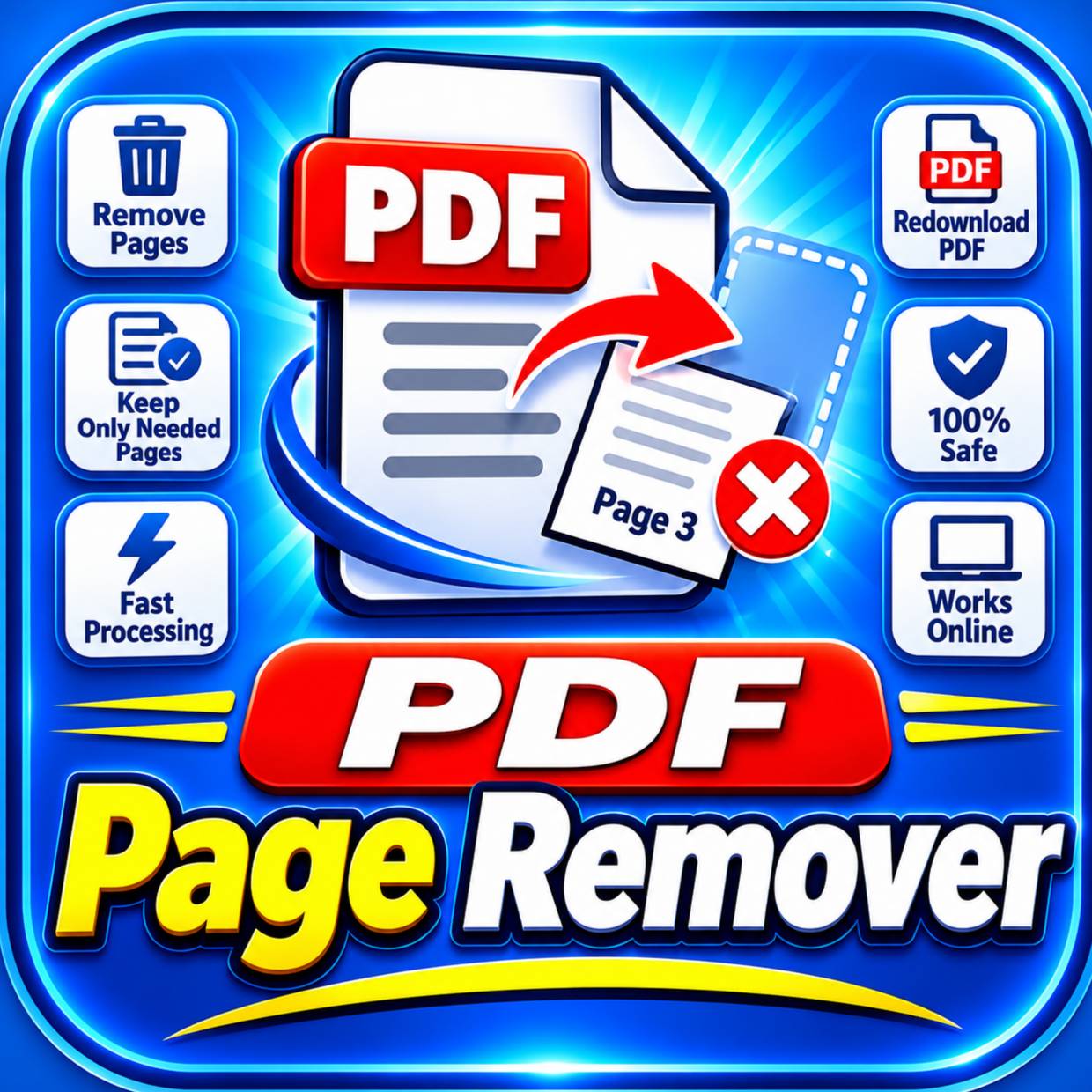
A PDF page remover lets you delete specific pages from an existing PDF without changing the rest of the document.
With our tool, you can:
-
Click any page thumbnail to mark it for deletion (red badge appears)
-
Type page ranges (e.g.,
2, 4-6, 9) to select multiple pages at once -
Use quick-select buttons — select odd pages, even pages, last page, or invert the selection
-
Add fresh page numbers (
1 / N) to the remaining pages automatically -
Preview every page as a live thumbnail before deleting
-
See a live summary — total pages, pages to delete, pages remaining
The result is a clean, professional PDF with only the pages you want — ready to download and share.
A good page remover should never force you to install software or upload your private documents to a server. Our tool does neither.
Why Choose Our PDF Page Remover in 2026?
There are many PDF tools online. Here is what makes this one different.
1. Your Files Are Never Uploaded
This is the biggest reason people choose this tool.
Most online PDF page removers upload your file to a server, process it there, and then send it back. That means your private documents — contracts, ID scans, medical records, business files — sit on someone else's machine.
Our page remover works differently. It runs entirely inside your browser tab using PDF-Lib and PDF.js. Your files are never uploaded, never stored, and never seen by anyone. Not even by us.
If privacy matters to you, this is the safest way to remove pages from a PDF online in 2026.
2. Visual Thumbnail Preview
You don't have to guess which page is which. Every page in your PDF is rendered as a real thumbnail preview — so you can see exactly what you're about to delete before you delete it.
Click a thumbnail, and it turns red with a "🗑️ DELETE" badge — clear visual confirmation that this page will be removed.
3. Multiple Ways to Select Pages
Everyone works differently. We give you three selection methods:
-
Click thumbnails — visual, one-by-one selection
-
Type page ranges — fast for bulk selection (e.g.,
2, 4-6, 9) -
Quick-select buttons — select odd pages, even pages, last page, invert, or clear
This makes it easy to remove anywhere from one page to hundreds of pages in seconds.
4. Add Fresh Page Numbers Automatically
After removing pages, the remaining page numbers in a printed PDF can look odd (e.g., page 1, 3, 4, 7). Enable the "Add Updated Page Numbers" option, and our tool automatically stamps clean 1 / N, 2 / N, etc. at the bottom center of every remaining page.
No more mismatched numbering after deleting pages.
5. Live Summary Panel
At the top of the workspace, you see three live counters:
-
Total Pages — how many pages your PDF has
-
Pages to Delete — how many you have marked (in red)
-
Remaining Pages — how many will stay (in green)
You always know exactly what the output will look like before you click "Remove."
6. Safety Check — Can't Delete All Pages
Our tool automatically prevents you from deleting every page. If you try, it stops you with a clear message: "Keep at least 1 page." No accidentally creating an empty, unusable PDF.
7. Completely Free, With No Limits
No subscriptions. No daily caps. No watermarks. No "remove 2 files then upgrade."
You can remove pages from as many PDFs as you want, as often as you want, at zero cost.
8. Works Everywhere
Chrome, Edge, Firefox, Safari — on Windows, macOS, Linux, Android, and iOS. No plugins, no extensions, no software installation.
How to Remove Pages from a PDF (Step-by-Step)
Removing pages takes only a few seconds:
-
Open the tool → Go to the SmallPDF24 PDF Page Remover.
-
Upload your PDF → Drag and drop your file, or click "Choose PDF."
-
Preview pages → All pages appear as thumbnails in a grid.
-
Select pages to delete →
-
Click a thumbnail to mark it (red "DELETE" badge)
-
Or type a range like
2, 4-6, 9in the range box -
Or use quick-select buttons (odd, even, last, invert, clear)
-
-
Check the summary → Confirm "Total / Delete / Remaining" counts look right.
-
(Optional) Add page numbers → Check the box to stamp clean
1 / Nnumbering on remaining pages. -
Click "Remove Selected Pages & Save PDF" → The tool rebuilds the PDF locally.
-
Download → Click the green download button to save your cleaned PDF.
No uploads. No sign-up. No waiting for a server.
👉 Try the Free PDF Page Remover →
When Should You Remove Pages from a PDF?
Removing pages from a PDF is useful in more situations than most people realize:
-
Scanned documents — delete blank pages, double-scans, and misfeeds
-
Business reports — remove old drafts, cover sheets, or outdated annexures
-
Contracts — strip out pages that don't apply to a specific party or case
-
Invoices — separate a specific invoice from a bulk PDF
-
Books and ebooks — remove ads, front matter, or unneeded appendix pages
-
Job applications — cut out pages that aren't relevant to the role
-
Portfolio PDFs — keep only your best work samples
-
Before compressing or merging — reduce pages first, then compress or merge the cleaned file
PDF Page Remover vs PDF Merger vs PDF Compressor — What's the Difference?
People often mix up these tools. The difference is simple:
-
PDF Page Remover → deletes specific pages from a PDF
-
PDF Merger → combines multiple PDFs into one file
-
PDF Compressor → makes a single PDF smaller without changing its content
All three are free on SmallPDF24, and none of them upload your files. They also work well together:
-
First, clean up your document with the PDF Page Remover.
-
Then combine multiple cleaned PDFs into one with the PDF Merger.
-
Finally, shrink the merged file with the PDF Compressor.
This three-step workflow is perfect for preparing a clean, lightweight PDF from scratch — remove, merge, and compress, all in your browser.
Is It Safe to Remove Pages from Confidential PDFs Online?
With most tools, the answer is "maybe." With this tool, the answer is yes — because your files never leave your device.
There is no server, no storage, no logging, and no third party involved. The page removal happens locally in your browser, which means:
-
No one can access your document
-
Nothing is saved anywhere after you close the tab
-
No data is collected from your files
For contracts, ID scans, medical records, and financial documents, this is the safest option available in 2026.
Frequently Asked Questions (FAQs)
Q1. Is this PDF page remover really free?
Yes. It is 100% free with no subscription, no watermark, and no daily limits. You can remove pages from as many PDFs as you need.
Q2. Are my PDF files uploaded to a server?
No. Your PDFs are processed entirely inside your browser using PDF-Lib and PDF.js. Nothing is uploaded anywhere, so your documents stay private on your own device.
Q3. How do I remove specific pages from a PDF?
Upload your PDF, click the page thumbnails you want to delete (they turn red), or type a range like 2, 4-6, 9 in the range box. Then click "Remove Selected Pages & Save PDF" and download the cleaned file.
Q4. Can I select multiple pages at once?
Yes. You can:
-
Type a comma-separated range like
1, 3, 5-8, 12 -
Click "Select Odd" to mark all odd-numbered pages
-
Click "Select Even" to mark all even-numbered pages
-
Click "Invert Selection" to flip your current selection
-
Click "Select Last" to mark only the final page
Q5. Can I delete all pages at once?
No. The tool keeps at least 1 page — a PDF cannot have zero pages. If you try to delete everything, you'll see a warning.
Q6. Does the tool add page numbers after removing pages?
It can. Check the "Add Updated Page Numbers (1 / N)" option before exporting, and the tool stamps clean page numbers at the bottom center of every remaining page.
Q7. Will the original PDF quality be preserved?
Yes. Pages are copied from the original document, so the remaining pages keep their exact original quality — text, images, formatting, and layout stay intact.
Q8. Can I undo a page deletion?
You can click a red-marked page again to unmark it — before you click "Remove." Once the new PDF is generated, the original PDF file on your device is untouched, so you can always re-upload it to start over.
Q9. Is there a file size limit?
There is no fixed limit, but very large PDFs (50 MB+) depend on your device's available memory, since page removal runs locally in your browser.
Q10. Can I remove pages from a PDF on my phone?
Yes. The tool is fully responsive and works on Android and iOS in Chrome, Safari, and other modern browsers.
Q11. Does it work offline?
Yes — after the first load, the page works without an internet connection, because all processing happens locally.
Q12. Is it safe to remove pages from confidential documents?
Yes — and it is safer than most alternatives, because your files never leave your device. No server, no storage, no privacy risk.
Start Removing Unwanted PDF Pages Today
Unwanted pages bloat your PDFs, confuse readers, and slow you down. Whether you're cleaning a scanned document, stripping out old report pages, or preparing a contract for a client, the Free Online PDF Page Remover 2026 makes it instant, private, and completely free.
👉 Remove PDF Pages Free — No Upload, No Signup
Delete with precision, protect your privacy, and share clean PDFs without limits.